
Remove scratches and dust from old photos
Fine scratches, white dust specks and fold lines spoil an otherwise lovely photo. Scratch removal cleans them up and leaves the rest of the photo just as it was.

Android app · start free, no payment needed
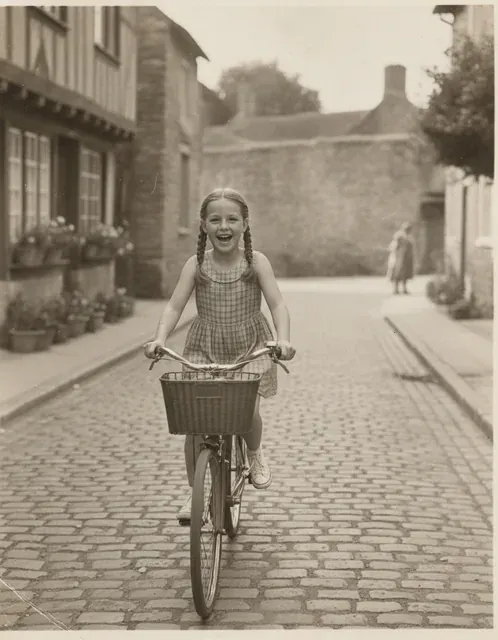
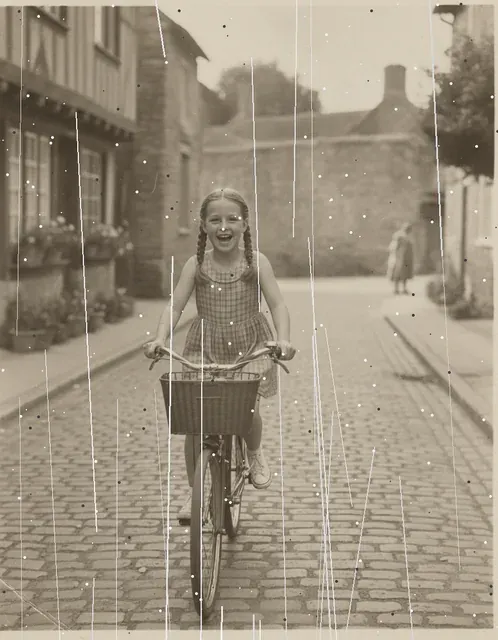 BeforeAfter
What it cleans up
It's gentler than Restore: it fixes small damage and doesn't change the colors, grain or character of the photo.
Scratches
Thin light and dark lines from years in a box or album.
Creases and folds
Lines where the photo was bent, and worn corners.
Dust and specks
White and black dots from the paper and from the scan.
Small stains
Little marks that pull attention away from the faces.
How to remove scratches from a photo
Scan the photo
Take a picture of it in the app or pick it from your gallery.
Choose Remove scratches
The result is usually ready in under a minute.
Compare and continue
Check the result with the slider, then colorize or animate the photo if you like.
Scratches or Restore?
- The photo is otherwise fine, just scratched or dusty: choose Remove scratches.
- The photo is cracked, torn, faded or has large stains: choose Restore.
- Before scanning, gently wipe off dust with a soft, dry cloth.
- Shoot without flash; reflections on glossy paper look like scratches.
What to expect
The app covers scratches and specks based on their surroundings. On backgrounds and clothes the fix is practically invisible, but where a scratch crosses an eye or mouth, the detail is recreated and may differ slightly.
If the result looks too subtle, the photo probably needs the stronger Restore.
Questions
What's the difference between Remove scratches and Restore?
Remove scratches fixes small damage and leaves the rest of the photo unchanged. Restore works on the whole photo: it also repairs cracks, large stains and fading and brings back detail.
Does it change the photo's colors?
No, colors and tones stay as they were. A black-and-white photo stays black-and-white; to get it in color, use Colorize.
Do I need a scanner?
No, your phone is enough. The app photographs the print, finds its edges and straightens it.
How much does it cost?
New users get free credits, so you can try your first edits without paying. After that you can buy a credit pack or an unlimited subscription through Google Play. Current prices are in the app.
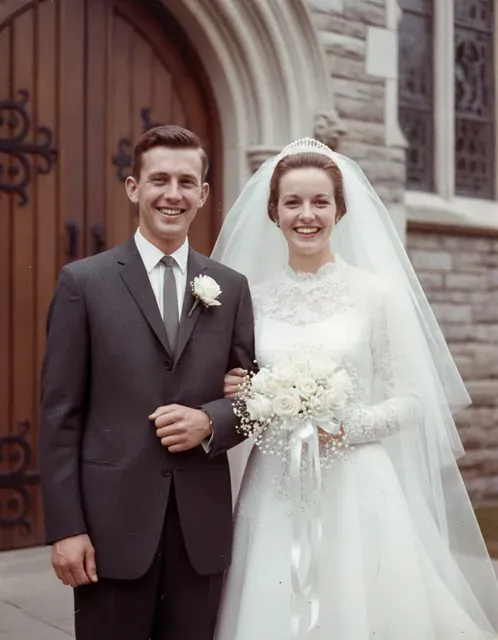 Restore old photos
 Colorize black-and-white photos
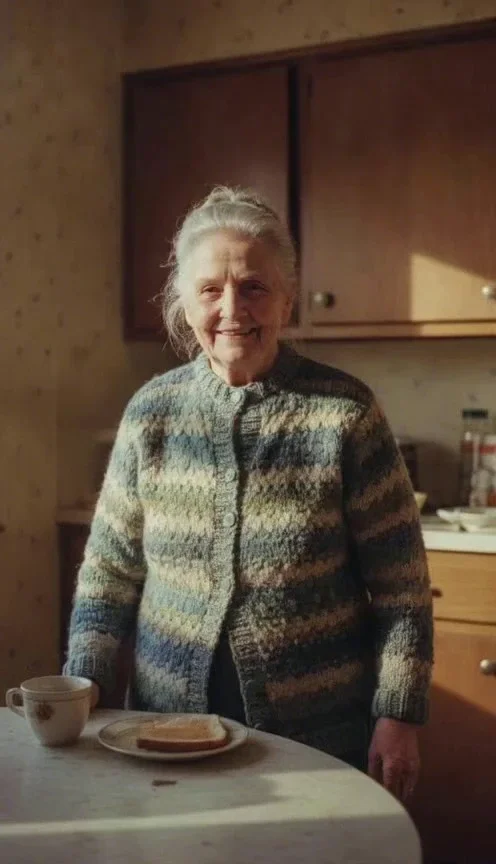 Animate old photos
 Enhance blurry faces
Try it on your own photo
Nostalgio is an Android app for now. New users get free credits, so you can try your first edits without paying. Uploaded photos are deleted after processing and results stay on our servers for only 7 days.